Picture Maya Rodriguez at 6:45 p.m. Tomorrow’s lesson has a title and nothing else. She needs a worksheet that fits three reading levels, uses only facts she has already taught, and prints in black and white. The pile of papers on her desk grows while she stares at a blank screen.
Material you can open tonight and adapt to one low-risk task is worth more than another long list of tools. That is what free AI resources for teachers should deliver. This page collects the free material on this site, then gives you a short test for anything you find elsewhere.
Where to find free AI resources for teachers
Start with A prompt library for teachers: 15 prompts to copy tonight. It holds fifteen prompts grouped by task: planning, adapting, questions, feedback, and admin. Each prompt sits in a fenced code block with [bracketed] slots. One plain line after each block tells you what to check before anything reaches students.
Next, print The teacher’s AI checklist: before, during and after. Short lines run before you open the tool, while you work, and before anything reaches students. Most of the page is checkboxes. The structure matches three moves: the tool drafts, you check, you decide.
The free sample contains only the book’s first four chapters. Those are “Do Any of These Sound Familiar?”, “Start Here Tonight”, “You Don’t Need to Be an AI Expert”, and “The Prompt Is the Instruction, Not the Product.” Read them without buying anything.
Treat every output from these resources as a first draft. The checklist gives you review points. Tools and their settings change over time, so check any date on a page before you follow its steps.
Outside this site, three free sources are worth knowing. UNESCO, Guidance for generative AI in education and research (2023) is UNESCO’s global guidance on generative AI in education. TeachAI, AI Guidance for Schools Toolkit is a free toolkit to help schools write AI guidance. The Common Sense Privacy Program publishes privacy evaluations of education apps, which helps with the data question below. All three still go through the five-question test.
Kinds of tools
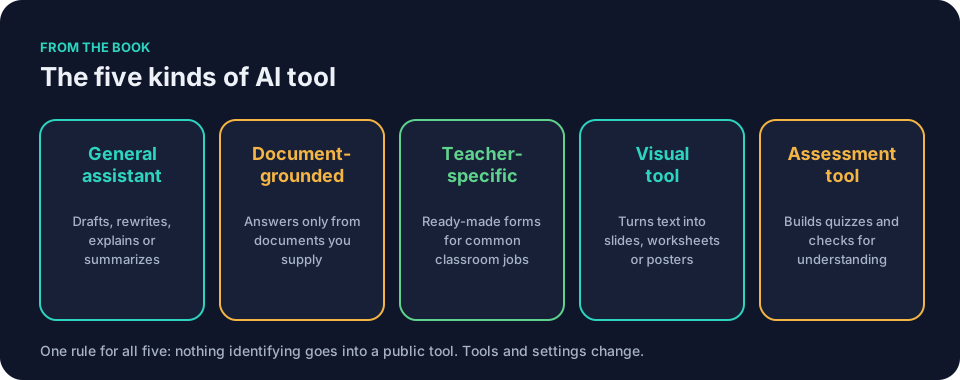
Free AI resources for teachers make more sense once you know the kinds of tool they assume. A general assistant, such as ChatGPT, Claude, Gemini or Microsoft Copilot, drafts text, tables, outlines, and simple visuals. A document-grounded tool, such as NotebookLM, answers from documents you supply; check any passage it cites against the original yourself.
A teacher-specific tool, such as MagicSchool or Brisk, walks you through common classroom tasks with ready forms. A general assistant can also draft a slide outline or quiz questions for you to check. A small set is enough to start: one general assistant your school allows, one document-grounded tool, and one teacher-specific tool.
Picture Frank Bell, the veteran social studies teacher. He spends part of every week rewriting the same worksheet for different reading loads. He could try one prompt that adapts a single text, then compare the editing it needs against rewriting it himself. If the editing takes as long as the rewriting, the tool has saved him nothing. He can compare the editing time with his usual method after the trial.
A five-question vetting test
Any other free AI resources for teachers should survive five questions. Ask them in order. One bad answer on data or privacy is enough to stop.
Who made it?
Look for a real name and a background you can verify. On this site, Koushik Deb spent three and a half years as an Assistant Professor at the Institute of Engineering & Management, Kolkata, and now works as an AI Engineer building generative-AI systems. A verifiable author is a useful signal, not a substitute for checking the material.
What does it do with your data?
Read the tool’s privacy notice before you paste anything. Does the provider keep what you type? Can staff review it? Is it used to train future models? Can you delete it? The answers live in the tool’s own notice and your school’s policy, not on the resource page. Keep student names, IDs, grades, and identifiable work out of any tool your school has not approved.
How recent is it?
Tools and settings change over time. A page written a year ago may describe behavior that no longer matches what you see. Find the date. If there is no date, verify every tool-specific step against the tool in front of you before you rely on it.
Does it save time or create more work?
Concrete material gives you a prompt with bracketed slots or a printable checklist you can use in one sitting. Vague advice without examples eats minutes. If a resource makes you watch a video or fill out a form before you see a single usable block, move on.
Does it respect Draft, Check, Decide?
The tool should draft. You check against your curriculum and your school’s standards. You decide what reaches students. Any resource that says the model will check accuracy, assign grades, or choose citations fails this question.
A ready-to-copy vetting prompt
Before you use free AI resources for teachers that ask you to enter text, find these answers in the provider’s notice. You can also paste the resource’s description into a general assistant and ask it to help you think through the five questions.
Here is a free AI resource I found: [paste the relevant text from the resource and privacy notice].
Help me vet it using these five questions:
1. Who made it, and can I verify their background?
2. What does it do with my data?
3. How recent is it?
4. Does it save time or create more work?
5. Does it respect Draft, Check, Decide?
Mark any answer you cannot find as "not established."
Flag anything that looks like a red flag.
The assistant cannot verify facts for you. It can only help you organize what you find. You still check the provider’s notice and your school’s policy yourself.
A manual privacy-notice checklist
Before you use free AI resources for teachers that ask you to enter text, find these answers in the provider’s notice.
- Does the provider keep what you type?
- Can staff review what you type?
- Is what you type used to train future models?
- Can you delete what you type?
- Does your school’s policy allow this tool for this use?
If any answer is unclear, do not enter school material. Ask your school first.
The test applied to one outside resource
Say a colleague sends you a link: “50 free prompts for report-card comments.” Run the five questions.
Who made it? The page shows a first name and no bio. You cannot verify the author, so you treat every prompt as unvetted. What does it do with data? The page links a privacy notice, but the prompts ask you to paste in real comments about real students. That stops the work until you check your school’s policy.
How recent is it? No date anywhere. You would have to test each prompt against the tool you actually use. Does it save time? The fifty prompts are one long scroll with no grouping, so finding the right one takes as long as writing the comment. Does it respect Draft, Check, Decide? The page says the tool “writes comments parents will love.” That promise gives you no reliable review standard. It fails.
Close the tab, and use the feedback prompts in the library instead, where the review line is built in.
The test applied to a resource that passes provisionally
Now say a colleague sends a different link: a prompt pack from a district’s curriculum office. Run the same five questions.
Who made it? The page names a real person and a district department. You can verify the author, so you treat the prompts as drafted by a professional, not as finished truth. What does it do with data? The page links a privacy notice that says inputs are not used to train future models and are deleted after thirty days. Your school’s policy allows this tool for planning tasks. That is a pass, provisionally.
How recent is it? The page carries a date from three months ago. You spot-check one prompt against the tool you use, and the steps match. Does it save time? The prompts are grouped by subject and grade, and each has bracketed slots. You can copy one and fill in its bracketed slots. Does it respect Draft, Check, Decide? The page says the tool “suggests ideas for your review.” That is the right division of labor.
Bookmark it, but still run the checklist on every output. A resource that passes the five questions earns a trial, not blind trust.
A worked comparison of time spent
Say Jordan Kim has twenty-seven responses on the Cold War waiting for comments. He wants to know whether the tool actually saves time. He tracks three numbers for one week.
Drafting by hand: 27 responses × 4 minutes each = 108 minutes. Drafting with the tool: 27 responses × 1 minute each = 27 minutes. Checking the tool’s drafts: 27 responses × 2 minutes each = 54 minutes. Revising the tool’s drafts: 27 responses × 1 minute each = 27 minutes.
Total with the tool: 108 minutes. Total by hand: 108 minutes. The tool saved him nothing on this task. He can compare the editing time with his usual method after the trial.
Now say he tries the same comparison on a different task: drafting a parent newsletter. Drafting by hand: 45 minutes. Drafting with the tool: 5 minutes. Checking: 10 minutes. Revising: 10 minutes. Total with the tool: 25 minutes. Total by hand: 45 minutes. The tool saved him 20 minutes.
The comparison, not a promise, tells you whether the tool earns its place. Run it on one task before you commit to a new routine.
Red flags
Free AI resources for teachers sometimes wave clear warnings. Spot them early.
The page promises perfect lessons or instant feedback. Do not treat a draft as ready for students until you have checked it.
It asks for student names or full writing samples before it shows an example. Paste nothing identifying into a public tool.
It carries no date. A missing date does not condemn a page, but it means you verify every claim before you use it.
It claims the model will cite sources reliably or catch every error. The tool drafts. You check.
It pushes a full new system before you have tried one ten-minute task. Pick one low-risk job tonight. Test it. Stop there.
Why ‘free’ sometimes costs data
Free access does not mean zero cost. Before you use any free tool, find out whether the provider keeps what you type, whether staff can review it, whether it trains future models, and whether you can delete it. Look to the provider’s notice for data practices and to your school’s policy for permitted use. If the data practices are unclear, do not enter school material.
Use the green-yellow-red test alongside that policy. Green covers generic planning and public information. Yellow covers anonymized student work or internal documents; ask your school first. Red covers any identifiable student detail, health information, discipline records, or anything that could identify a child. Keep red material out of any tool your school has not approved.
One caution on yellow: removing a name does not always anonymize a piece of work. A distinctive project, a small class, or a known incident can identify a student anyway. If you cannot decide the color, treat it as yellow and ask.
Worked example in eighth-grade science
Say Maya needs questions on thermal energy transfer. She opens the prompt library and starts with a prompt from the questions group, adapting it to retrieval practice. She fills the slots with her topic, the exact facts she has taught, the time limit, and the materials allowed. No student names. No identifiers. Green.
Write [number] retrieval-practice questions for [grade and subject] on [topic].
Use only these facts: [list the facts you have taught].
Add one short-response item and one exit ticket.
Include a separate answer key and a note on one common misconception.
Flag anything you are unsure of so I can check it.
The general assistant returns the questions, the exit ticket, the misconception note, and the answer key. Maya opens the checklist and reads every science claim against her notes. One answer still says cold moves from the table to the mug. That is backwards: if the mug is warmer than the table, thermal energy transfers from the mug to the table. She corrects the key, lowers the reading load on two questions, and checks the whole key once more before she prints.
She saves both the prompt and her edited version, so next week she changes only the topic.
Worked example in social studies feedback
Jordan Kim has twenty-seven responses on the Cold War waiting for comments. He checks his school’s policy and confirms the tool is approved for this use. He removes names, dates, and any detail that could identify a student, then pastes the anonymized pile into a document-grounded tool. Yellow, approved for this use.
Here are [number] anonymized student responses on [topic].
Suggest possible recurring misunderstandings across the set.
Draft one sentence starter I could adapt for each misunderstanding.
Do not grade or rank the responses.
The tool suggests four possible recurring misunderstandings and a sentence starter for each. Jordan reads the responses himself before deciding what is actually common. Two of the four hold up; one appears only twice; one is not there at all. He keeps two starters, rewrites one, and drops the rest. Before anything goes home, he checks the tone of every comment against his rubric.
Worked example in front-office messages
Denise Carter in the front office needs a clear note home about a change in bus pickup. She copies the admin prompt and fills the slots with a wholly generic template: [route], [new time], [start date]. No child’s name, no incident details. Green.
Draft a short note to families about [topic, e.g., a change to the bus schedule].
Audience: families of elementary students.
Tone: warm and plain, no blame.
Length: under [number] words.
End with who to contact at [school office].
The draft is polite without sounding like a judgment. She inserts the real route, time, and date after drafting, then sends it through her office’s usual channel. When a real incident involves a specific child, that message goes through the process her school approves, not through a public tool. Her office procedure already includes logging the contact, so she logs it.
Common mistakes and how to fix them
A common mistake with free AI resources for teachers is treating the first output as final. The fix is the checklist. Read it once before you open the tool, and keep it open while you edit.
Another mistake is skipping the color test. Paste yellow or red material into the wrong place and you hand over information your school never approved. The fix is one question in your head at 9 p.m.: green, yellow, or red. If unsure, ask.
Many teachers also copy a prompt without the review ingredient. The output then buries errors in fluent prose. Add the review line. Ask the tool to flag what you must verify. You still check every line.
Questions teachers ask
How do I know a prompt is good before I try it?
Look for seven ingredients: context, goal, constraints, examples, output shape, review, iteration. A prompt should name the grade, the facts to use, the length, and what you need to check in its output. The prompt library shows finished examples. Copy one and change only the slots.
Can I use these resources with students directly?
Only after you check the output and confirm it meets your school’s policy. Use the checklist’s last section to remind yourself to check the output and your school’s policy. You make the final call on whether the material fits your learners.
What if the tool gives wrong information?
Expect it sometimes. A draft does not establish that the content matches your curriculum, so check it against the curriculum yourself. Then compare the time you spent drafting and checking against your usual method. That comparison, not a promise, tells you whether the tool earns its place.
How many tools do I actually need?
Three kinds cover most classroom work: one general assistant, one document-grounded tool, one teacher-specific tool. Add more only when a real task demands it.
Do free AI resources for teachers on this site need the five-question test?
Yes, including the material on this site. Use the same five questions here, too. Check the provider’s data practices and your school’s policy before entering school material.
The book
The five questions on this page follow the same habit that runs through Keep It Simple: AI for Teachers: check who made a thing before you trust it. The book has a chapter titled “Sources and Further Reading,” and the same test applies to anything listed there. The free sample lets you read the opening chapters first.
Try one Green planning task tonight
Open the prompt library and pick one Green planning task, tonight’s blank worksheet or Friday’s quiz. Copy the prompt that matches it, fill the bracketed slots with your topic and constraints, and paste it into the general assistant your school allows. Then run the checklist and change what needs changing.