Picture Maya Rodriguez at 6:52 p.m. A blank lesson template sits on one side of her screen. A general AI assistant waits on the other. She needs eight retrieval questions before morning. This AI teacher checklist helps her set the task before she pastes anything.
The AI teacher checklist works for any task that fits the five things AI can actually help with. Those are draft, understand, adapt, create, or organize. The tool never decides. You do.
Before you open any tool
Decide the exact purpose first. A clear goal gives you something specific to check against the draft.
- Write one sentence that names the job. Example: “Draft eight retrieval questions on energy transfer for a 15-minute warm-up.”
- List what you already know about the class. Include grade, recent lessons, common misconceptions, and materials on hand.
- Confirm this task belongs in the green or yellow category. Green covers generic planning or public information. Yellow means ask first. That includes anonymized student work. School policy governs internal documents and approved tools. Red covers information that must not go into a tool your school has not approved. The category describes the data, not whether the task itself is appropriate for AI.
- Remove anything that could identify a student. This includes names, IDs, and the small details that point to one child. A grade band may be useful context. Check it alongside every other detail you plan to enter. Follow your school’s policy. The short guide on student data and AI: what never goes into the prompt walks through the green, yellow, and red lines.
- Choose the right kind of tool. Options include a general AI assistant such as ChatGPT, Claude, Gemini or Microsoft Copilot. Or a document-grounded tool such as NotebookLM. Or a teacher-specific tool such as MagicSchool or Brisk. Tools and their settings change. Test yours.
- Gather any trusted sources you will paste or upload. Never add red information.
You can reuse these checks on later tasks. They give you specific details to compare with the draft when you check it.
While you work with the tool
Use the seven ingredients of a prompt. This keeps the draft narrow and useful. The prompt is the instruction, not the product.
- State context. Include grade band, subject, objective, what students already know, and reading levels in the room.
- Name the single goal. Tie it to one decision you will make after you check the output.
- List every constraint. Cover length, number of items, tone, materials, and what the tool must not add.
- Provide one or two examples in your own classroom voice. If none are handy, say so plainly.
- Specify output shape. Use a separate answer key, numbered list, teacher notes, table, or whatever makes checking fast.
- Add review instructions. Ask the tool to flag facts you must verify, wording that could confuse, or items with more than one right answer.
- Plan for iteration. Save the prompt so you can quote one weak part and request one narrow change next time. Keep student information out of the saved version.
For a task like the energy-transfer warm-up, a copyable prompt might look like this:
Draft [question count] retrieval questions on [topic] for a [duration] warm-up.
Grade [grade]. Students have already studied [prior learning].
Common misconceptions include [misconception].
Keep each question under 15 words and do not add any new topics.
Here is an example in my style: "[example question in your voice]"
Provide a separate answer key.
Flag any facts I should verify.
Use it when the purpose is clear and the data is green.
Maya adds one sentence about misconceptions to her prompt. The next draft needs fewer fixes.
After the tool finishes
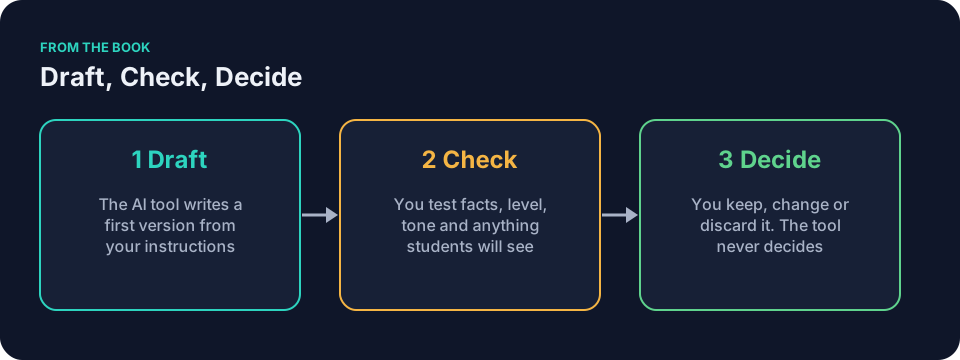
Draft, check, decide. The tool drafted. You check. You decide. The routine in how to check AI-generated content before it reaches students expands each step below.
- Verify every fact against your trusted curriculum or source. Even when a tool provides a standard or source, check it against the trusted original.
- Check reading level, clarity, and load against the students who will use it.
- Scan for bias, loaded language, or assumptions that do not fit your classroom.
- Confirm instructions match the original goal and contain no invented standards or extra tasks.
- Read the answer key or rubric as if you were a tired student. Flag anything ambiguous.
- Confirm sources exist and say what they actually say.
- Decide what reaches students. Keep, edit, or discard. Never let the tool make high-stakes calls on grades, placements, referrals, or safety.
- Note one change for next time. Save the revised prompt next to the final file.
Denise Carter in the front office runs the same checks before any message home. Jordan Kim uses them on batches of feedback. The steps stay the same across subjects and age groups.
Common mistakes and how to fix them
The AI teacher checklist starts with a purpose sentence; without one, the draft has no clear target. A vague request may produce material that does not fit the intended task. Fix it by writing that one-sentence job before you open the tool.
Another mistake is treating yellow data as green. A piece of student writing with the name removed can still contain details that identify the writer. The fix is to run it through the green-yellow-red test and follow your school’s policy. The linked guide on student data gives practical examples of how to anonymize a short paragraph.
Teachers sometimes paste the first draft straight into a lesson. The after section is where teachers stop and check the draft. It gives you a place to check facts and wording before use.
AI teacher checklist: a worked example in social studies
Say Frank Bell needs a short exit ticket on the causes of the American Revolution. He writes his purpose sentence at 4:10 p.m. He lists the prior lessons his tenth graders finished last week. He confirms the task is green. No student names appear.
He opens a general AI assistant and pastes a prompt built from the seven ingredients. Frank checks each fact against his textbook. He compares one answer-key claim about the Stamp Act with the chapter his class actually read. He adjusts one question that assumes every student knows the meaning of “tyranny.” He reads the answer key aloud as if he were a student who slept through third period. He decides to keep the ticket with two small edits.
He saves the prompt in a department folder for next year.
Using the AI teacher checklist with your department
Share the printed page at your next team meeting. Treat it as a shared reference, not a mandate.
- Bring one low-risk sample task to the meeting. Check one draft together using the after section.
- Apply your school’s policy to decide which tasks count as green, yellow, or red for your subject or grade band. Take unresolved yellow cases to the appropriate person. The TeachAI, AI Guidance for Schools Toolkit is a free resource to help schools write AI guidance.
- Build one reusable prompt block for a common job, such as quiz items or parent notes. Store it where everyone can edit the variables.
- Review one another’s checked drafts during planning time. A colleague can check a draft for something its author may have missed.
- Keep a department folder of saved prompts and the exact facts each unit allows. Update it when the curriculum changes.
- Revisit the checklist after any new tool update. Your yellow-line questions may need to change with it.
When your team moves from single tasks to full lesson plans, the AI lesson planning checklist picks up where this page stops. It adds checkboxes for objective alignment, timing, differentiation, and materials.
Questions teachers ask
Which checks apply to a generic worksheet?
All of them. A generic worksheet with no student data still needs the purpose sentence, the seven prompt ingredients, and the full after section. The data checks pass quickly because nothing identifies a student, but the fact and wording checks stay the same.
What if my school has no AI policy yet?
Do not enter student data without school approval. Identifiable student information must not go into a tool your school has not approved. Anonymized work may still require approval, so ask the principal or the person responsible for technology how your school handles it and which tools are approved.
Can I use this checklist with a teacher-specific tool that already has forms?
Yes. The before and after sections still apply. The during section helps you fill the form fields with the same seven ingredients instead of typing them into a chat box.
Does the checklist work for visual tools that turn text into slides?
It does. Add one checkbox under after: open the slide deck and read every bullet as if you were a parent at back-to-school night. Change anything that sounds like marketing copy.
The reasoning behind the safety checks sits in the Safety: Privacy, Detectors, and High-Stakes Calls chapter of Keep It Simple: AI for Teachers, which covers privacy, detectors, and high-stakes calls.
Tonight, pick one green task. The energy-transfer warm-up or something like it. Fill in the first checkbox before you open the tool.