At 6:45 Maya Rodriguez reheats the same coffee for the third time. Tomorrow’s eighth-grade science lesson still has only a title. She needs a warm-up question on thermal energy and a short worksheet to go with it. Twelve years in the classroom have taught her the pattern. The blank page is the hard part. The checking is where her evening actually goes.
The work arrives in small pieces. Draft, understand, adapt, create, organize. AI tools for teachers can take a first run at those pieces. None of them decides what reaches students. That stays with you.
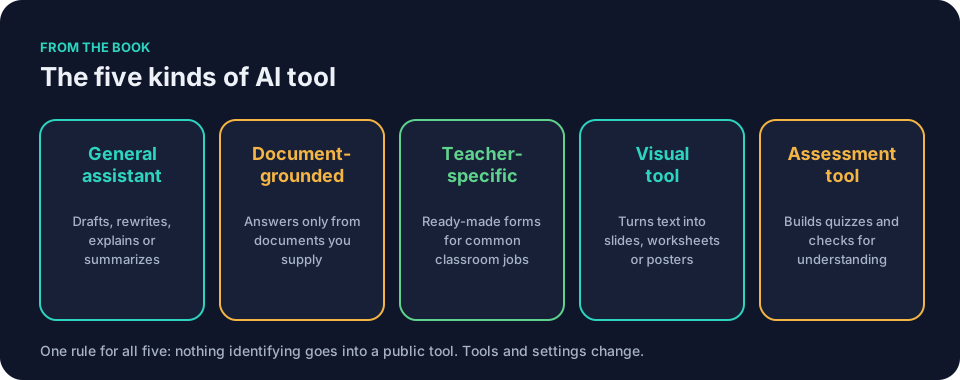
The book lists five kinds of tool, including visual tools and assessment tools. This guide covers the three you are likely to meet first.
Five things AI can actually help with
A general assistant or similar tool can draft a lesson outline, a message, or a rubric. It can help you understand a pile of notes or trusted documents. It can adapt one resource for different learners. It can create questions, simple visuals, or classroom materials. It can organize scattered thoughts into a usable shape.
When you use AI tools for teachers, you are almost always asking for one of these five things. Naming the verb first makes the choice of tool simpler. Before Maya opens any tool, she writes one line at the top of her plan book: draft a warm-up, adapt a worksheet, organize Friday’s review. Each line points to one kind of tool.
The three kinds of AI tools for teachers
A general AI assistant such as ChatGPT, Claude, Gemini or Microsoft Copilot can help you draft, rewrite, explain, or summarize material your school permits you to share. You reach for it when you need a starting point fast. A blank lesson plan. A clearer version of a note home. Six retrieval questions on thermal energy transfer.
The ChatGPT for teachers: what to ask it and what to check article shows the difference between a vague request and one that gives the tool bounded work. Everything in that piece applies to any general assistant.
A document-grounded tool such as NotebookLM works from documents you provide. You can ask it to identify where an answer comes from, then check the source yourself.
Use it when you have six articles open and none of them is the one you need. Or use it to ask questions about last year’s curriculum guide, then check each answer against the guide. The tool is meant to stay within your documents, but you verify that it did. Before you rely on one, check whether it accepts the files you actually use.
A teacher-specific tool such as MagicSchool or Brisk walks you through common classroom tasks using ready-made forms and workflows.
Say Jordan needs a set of exit tickets for tomorrow’s algebra review. He opens the tool, picks the exit-ticket task, and enters the topic, the grade level, and the three skills his class struggled with this week. The tool drafts six questions.
He reads each one against what he actually taught. He cuts two that assume a method he has not introduced. He rewrites a third so the wording matches his board notes.
Tools and their settings change. Prices change. Whatever you read here about a specific product, confirm it against the current version before you build a habit around it.
Draft, check, decide
Every workflow uses the same three moves. The tool drafts. You check it against your knowledge of the content, your students, your standards, and your school’s rules. You decide what to keep, change, or discard. The tool never decides.
It cannot see the student who freezes on multiple-choice items or the one who needs the misconception named aloud. That judgment is yours. A concrete check you can run on any draft: pick one fact, one name, and one instruction, then verify each against your own notes before anything else. If one of the three is wrong, read the whole draft line by line.
Before you paste anything
One rule sits in front of every tool. Read it once before you open any interface.
Green means generic planning and public information, subject to your school’s policy and its list of approved tools. Yellow items require a quick check with your school: anonymized student work, internal documents, anything a student will use directly.
Red items stay out of any tool your school has not approved. That list includes student names, ID numbers, grades, attendance, discipline records, IEP or 504 details, health information, anything about a family, or any piece of student work that could identify the writer. The same red line applies to letting a tool make the final call on a grade, a placement, a referral, or a safety concern.
If you are unsure whether an item is green or yellow, keep it out of the tool and ask your school. Uncertain material might belong on the red list, and a pause costs less than a mistake. The same pause matters when sharing your own information or a colleague’s. The companion article AI privacy for teachers: settings and habits that protect you walks through personal versus school accounts, chat history settings, and what not to screenshot.
Why a small system beats twenty tools
Say Jordan bookmarks seventeen different AI sites. Each promises to solve one precise pain. The bookmark bar grows longer. The mental overhead grows heavier. On Tuesday he cannot remember which tool has the good quiz generator and which one requires a separate login that his district has not approved.
One general assistant for most drafting and rewriting. One document-grounded tool for trusted sources. One teacher-specific tool for the repetitive jobs that already have a standard shape. You skip the decision about which of seventeen tabs to open, which login to remember, which new interface to learn. You open the one tool that fits the job and start.
Treat three as an upper limit, not a target. Start with one approved tool and one task. Add a document-grounded tool only when you keep running into questions about your own documents. Add a teacher-specific tool only when a weekly task has the same shape every time. If that second or third moment never comes, one tool is enough.
You do not need to build it all at once. Run one prompt through one tool, check the result, and stop. Come back tomorrow for the next small piece.
How to choose within a category
If your school provides an approved account, start there. For anything yellow, check your school’s policy before you paste.
When comparing general AI tools for teachers, test the same low-risk request in the school-approved options. Give each one the same bounded task: draft six retrieval questions on a topic you know well, or rewrite a note home for clarity. Compare how much correction each draft needs. Pick the one that gives you less to fix.
For a document-grounded tool, test whether it lets you upload the exact files you use and, if it offers source references, whether those references are easy to verify against the source. The teacher still checks every claim.
For a teacher-specific tool, open the form for a task you run every week and check whether it lets you specify the grade, the topic, your constraints, and the format you actually need. If the form cannot hold those four things, the tool will keep handing you drafts you have to rebuild.
The prompt library, checklists, and free AI resources for teachers, and how to judge the rest on this site give concrete starting points. When you meet any other free tool, ask four quiet questions: who made it, what it does with your data, how recently it was updated, and whether it saves your work. Check access and data practices against your school’s policy before you use it.
The TeachAI, AI Guidance for Schools Toolkit offers schools a free starting point for writing their own guidance. The Common Sense Privacy Program publishes privacy evaluations of education apps that can help when you review new options.
Comparing two tools in one category
Say Maya’s school approves two general assistants. She wants to know which one to keep. She runs the same bounded request through both on separate days, using only green material:
Draft six retrieval questions on [topic] for [grade level], at most two sentences each, with a separate answer key.
With the first tool, she checks three things. Do the questions match the physics she actually teaches? Does the key agree with the questions? How many items assume lab equipment her room does not have? She finds two questions that drift into chemistry and one key answer that conflates heat with temperature.
With the second tool, she runs the identical prompt and checks the same three things. This draft holds the physics better, but the reading level runs high and two questions repeat each other in different words.
She counts corrections, not features. The first draft needed four fixes. The second needed three, all of them small. She keeps the second tool for question drafts and writes the reading-level constraint into her saved prompt. The comparison took one planning period, and she saves her checks so she can compare again if her tasks, school rules, or the tools change.
The same comparison works across categories of AI tools for teachers. One bounded task you know cold. The same prompt in both tools. A short list of what you check. The winner is the draft that gives you less to fix, not the one with the longer feature page.
One reusable prompt
Picture Maya saving one prompt block for worksheet drafts. It contains the seven ingredients and the exact constraints she repeats every week.
She pastes a generic topic and trusted facts she has already cleared for use. She runs the draft. She circles the errors. She iterates once or twice. The prompt gives her a narrower list of things to fix. It never makes the science true. She still checks that at the copier.
Context: I teach [grade level] [subject] to [number] students.
Goal: Draft a [type of material] about [topic].
Constraints: Use [reading level]. Keep it under [time limit] minutes. Include [number] questions.
Examples: Here is a model of what I want: [paste a public or school-approved example].
Output shape: Give me [format: bullet points, paragraphs, table].
Review: Flag any statements that might be inaccurate or unclear so I can verify them.
Iteration: I will review and ask for changes.
Any facts you supply with the prompt should meet the same test: public information, or material your school has cleared for that tool.
A document-checking prompt
Frank Bell keeps a second saved prompt for his document-grounded tool. It is shorter, because the tool already holds his sources. Its job is to make the answers easy for him to verify.
Goal: Answer this question using only the documents I have provided: [your question].
Output shape: Give the answer in [number] sentences, then list each claim with the document name and page or section it comes from.
Review: If the documents do not answer part of the question, say so instead of guessing.
Iteration: I will check each claim against the source and ask follow-up questions.
He runs it against four uploaded primary sources on the Constitutional Convention. The tool lists three compromises and points to a document and section for each. Frank opens each source himself. Two citations match the claims. The third points to a later section that says something different, so he removes that line from his notes.
That removal is the point of the prompt. The claim-and-source format turns a fluent paragraph into a checklist he can work through with the originals open beside him. He never treats the tool’s citation as proof. He treats it as a place to look.
Common mistakes with AI tools for teachers
A common mistake with AI tools for teachers is treating the first output as final. The tool produces fluent text. That fluency hides gaps. You still read every sentence against your own knowledge and your school’s standards.
Another mistake is opening too many tools at once. Each new login, each new interface, adds friction. The time saved on one task disappears while you hunt for the right tab. Stay within the small set of kinds that cover most jobs.
Before you paste yellow material, check your school’s policy and approved-tool list. The pause feels slow in the moment. It gives you a chance to resolve the permission question before sharing anything. If you cannot tell whether an item is green or yellow, keep it out of the tool and ask your school.
Vague prompts create more work. A request that amounts to “make a worksheet” forces the tool to guess your grade level, your reading targets, and your exact objective. The seven ingredients cut that guesswork. Context, goal, constraints, examples, output shape, review, and iteration tell the tool what you want; you still check what it assumed.
A worked example in middle school science
Picture Maya at 6:50 with the thermal energy worksheet still blank. She opens her school-approved general assistant. She pastes the topic, the time limit, and a short list of facts about conduction, convection, and radiation that she has checked against public sources and confirmed are fine to share under her school’s policy.
She uses her saved prompt with the seven ingredients. The tool returns a draft with eight short questions, one short-response item, success criteria, and a separate key. Now the checking starts.
One question confuses heat with temperature. She deletes it. Another repeats a definition the class covered last week. She replaces it with an item that surfaces the misconception that cold moves from object to object. She reads the key line by line against her own notes and fixes one answer that is technically true but worded in a way her students will misread.
The final worksheet fits the thirty-eight-minute period and sounds like her.
The next evening she needs the same worksheet for students who read below grade level. She opens the same assistant and adds a constraint to her saved prompt:
Rewrite at a [reading level] reading level without changing the science.
She iterates once. She checks the new version at the copier before she prints, reading every question aloud to hear where a student might stumble.
A worked example in high school social studies
Frank’s document-checking routine above covers his source work. Later the same week he needs an exit ticket on the convention. He switches to his teacher-specific tool, selects the exit-ticket workflow, and enters the topic, the three big ideas from his lesson, and the format he prefers.
The tool suggests four questions. He keeps two. He rewrites one so it matches the wording he used on the board. He adds a fourth of his own that asks students to connect a compromise to a modern example, because that is the move his class has been practicing. Nothing in the form knew that. He did.
A worked example in a message home
Denise Carter in the front office drafts a message home about a student’s strong effort in math. She opens her general assistant and supplies only green details: the subject, the occasion, and the tone she wants. She asks for a short, warm note under seventy words that a parent can read quickly.
The first draft sounds stiff. She adds a sentence describing the warmer tone she prefers and iterates. The second version is closer. She reads it once more, swaps a generic phrase for the specific assignment the student stuck with, and checks that the note says nothing about grades, other students, or anything beyond what her role allows her to share. Then it goes through the school’s normal channel for messages home.
Choosing to use no tool
Some tasks should stay analog. Picture Maya writing a comment on a student’s lab report. The report is student work, and the comment will mention the student by name. Under her school’s policy, that puts the task on the red side of the line for any tool she has access to.
She could anonymize the report, paste it, get a draft comment, and reattach the name. She decides the extra steps are not worth it for a two-sentence comment she already knows how to write. She writes it herself in the margin and moves to the next paper.
The same logic applies to anything a tool should never touch: a note about a family situation, a concern she plans to refer, a grade she is still weighing. A small system includes knowing when the right tool is none. The decision is quick once the red line is clear.
Questions teachers ask
How many AI tools for teachers do I really need?
Start with one approved tool and one low-risk task tonight. Add a document-grounded tool when you keep needing answers from your own documents. Add a teacher-specific tool when a weekly task has the same shape every time. Three is a sensible ceiling for most teachers, not a requirement. Many weeks, one is enough.
What if my school has not approved any AI tools for teachers yet?
Keep student data and internal documents out of every tool until your school publishes its list. Ask your leadership what is allowed before you paste anything beyond generic planning. The TeachAI, AI Guidance for Schools Toolkit can help your school write that guidance.
Can a document-grounded tool replace my curriculum maps?
It can surface answers from the maps you give it. It cannot replace your reading of those maps. You still open the original document and confirm every claim. The tool narrows the search. You supply the judgment.
How do I keep my own information safe when I use AI tools for teachers?
Use a school-approved account when one exists. Review chat history and training settings where the tool offers them. Avoid screenshots that contain colleague names or private notes. When you are unsure, ask your school before you paste.
Do I need to become an expert to use these tools?
No. You need to know your subject, your students, and your school’s rules. The rest of the skill lives in the seven ingredients of a prompt and the habit of reading every output before it reaches students.
The book Keep It Simple: AI for Teachers develops these ideas in more depth, including a chapter on building a small three-tool system. Its first four chapters appear in the free sample on this site.
Tonight, take the note home you have been putting off. Open your school-approved general assistant. Paste only what school policy allows you to share with that tool: a generic description of the event, and the date, time, and supply list if those are cleared.
Context: I am writing to families about [event].
Goal: Draft a short, friendly note home.
Constraints: Under one hundred words. Include the date [date], the time [time], and the supply list [supply list]. Plain language a parent can read quickly.
Output shape: One short paragraph plus a brief list of what to bring.
Review: Flag any detail you assumed so I can check it against the original announcement.
Iteration: I will review and ask for changes.
Read the draft the way a parent would. Check the date, the time, and every supply item against the original announcement. Fix what sounds off, then run it through your school’s normal approval and sending process.