At 4:17 p.m. Maya Rodriguez closes her laptop in the empty classroom. She has just asked a general assistant to rewrite an email to a parent. The draft is fine. What bothers her is that she entered the parent’s name and cannot assume the chat is private.
Teachers touch colleagues’ notes, parent messages, and internal schedules every day. Without clear boundaries, that information can end up in places you did not intend. AI privacy for teachers means drawing those boundaries before the first prompt.
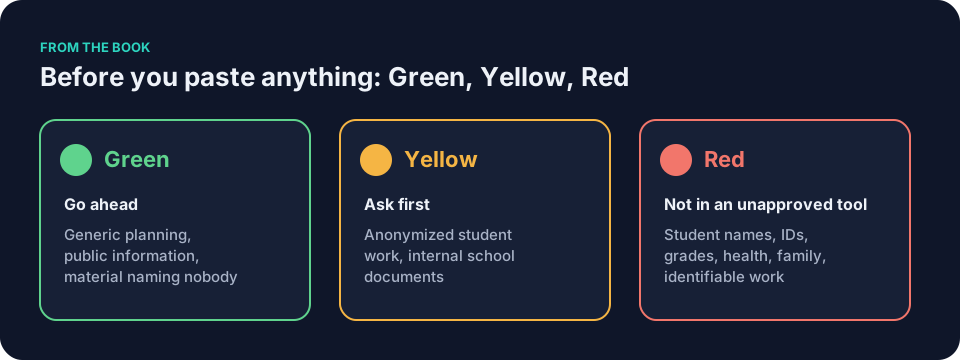
AI privacy for teachers starts with the right account
Check your school’s policy before you use any AI tool for work. A school-approved account does not make every prompt permissible. Check which accounts, tasks, and materials your school’s policy approves.
Do not assume approval of a tool or school login extends to your personal login. Even if you use the same general assistant such as ChatGPT, Claude, Gemini or Microsoft Copilot, do not treat a personal login as covered by your school’s decision. Check policy before using either account for a task.
Picture Jordan Kim at his kitchen table. Twenty-seven student responses wait for comments. He considers pasting an anonymized paragraph into his personal account because it feels faster. He should not assume an anonymized paragraph is approved for a personal account. The safer move is to check whether the school’s policy allows that material in any account, then use the approved one if it does.
Frank Bell keeps two logins on his school laptop. One browser profile for the district account. One for personal use after hours. The separation reminds him which work belongs where. It is a possible reminder, not a guarantee that a mistaken paste will never happen.
Use an approved account only for tasks and material the school’s policy permits. Tools and their settings change, so check the current options with your technology coordinator. A common mistake with AI privacy for teachers is treating the personal account as a faster shortcut.
History and data settings in general terms
Tools may offer separate controls for saved chats, memory, retention, and use of data for training. Check the current settings and school policy. Deleting or hiding history, disabling memory, and changing training preferences are distinct actions. One does not replace the others.
Saved chat history is a record of past conversations. Memory is a feature that lets the tool remember details across chats. Training preferences control whether your conversations may be used to improve the model. Not every tool offers all three. None of them makes it safe to paste restricted information.
Open the settings once. Inspect the available controls without assuming a specific deletion period exists. Keep unapproved information out of the prompt regardless of settings.
Say Jordan opens his school-approved account on a Tuesday afternoon. He finds a settings menu with options for chat history and data controls. He does not see a memory toggle. He reads what each available option does. He does not assume that turning off history means the conversation disappears. He checks his school’s policy on what may be entered, then proceeds with a generic planning task.
A document-grounded tool such as NotebookLM works with documents you provide. Check its answers against those documents, and check school policy before uploading them. Teacher-specific tools such as MagicSchool or Brisk are examples of tools built for classroom tasks. Direct your questions to school-approved options.
Colleagues’ and parents’ information
Say Denise Carter in the front office is about to copy a parent reply into a general assistant to shorten it. The reply contains the parent’s phone number and a detail about family travel. Instead of pasting the message, she writes a generic request.
Draft a polite response to a parent asking about [topic].
She does not include the parent’s message. If she must work from the original, she checks school policy first or writes it herself.
Identifiable material does not go into an unapproved tool. Anonymized material is yellow and requires permission under school policy. If the details could identify someone, do not put them in an unapproved tool. Ask your school what, if anything, its policy permits.
Eli Thompson wants to summarize a team meeting. He has three direct quotes from other teachers. Before he pastes, he decides to remove the names and use a generic prompt instead.
Draft a neutral summary of a grade-level planning meeting that covers [topic 1] and [topic 2].
Write a generic request from scratch rather than pasting the original. Check the new wording for identifiable details before sending it. AI privacy for teachers includes the details around a name: a date, role, or unusual event may identify someone too.
Screenshots and what they reveal
A screenshot seems harmless. It often contains more than you notice. Browser tabs, email previews, file names, a school logo in the corner, or an account name in the header can identify a school or person.
Crop tightly. Remove any visible name, email address, or document title. Better still, retype the relevant text instead of pasting an image. Retyping only the needed, non-identifying text avoids sending the rest of the screenshot.
Retyped text still needs a check. Read it for names, initials, and contextual clues such as a specific date, room number, or event that could point to a person or school.
Picture Maya taking a screenshot of a rubric layout. The image shows three browser tabs: her email, a gradebook page with a student surname in the tab title, and a news site. A notification preview from the front office sits in the corner with a parent’s name. She closes the extra tabs, dismisses the notification, and takes a new screenshot of only the rubric. Then she retypes the two lines she actually needs and deletes the image.
Jordan now pastes text instead of screenshots when he needs help with a rubric layout. The prompt is longer but the risk is smaller. The same rule applies to any image you upload to a general assistant or teacher-specific tool.
AI privacy for teachers: a five-minute pre-prompt check
Before you open any tool, run this check. Set aside five minutes for these checks.
- Decide the color. Green for generic planning, yellow for anonymized material (ask first), red for anything that names or identifies a person in an unapproved tool. Student data and AI: what never goes into the prompt walks through the Green/Yellow/Red rule with concrete examples.
- Choose the account. Check school policy and use an approved account for tasks and material the policy permits. Restrict a personal account to personal or generic, non-identifying tasks, subject to school policy.
- Open settings. Find the current history, memory, and training controls if available. Check what each one actually changes. Do not treat any setting as permission to paste restricted information.
- Prepare the prompt. Remove every proper name, phone number, email, and specific identifier. Replace them with neutral placeholders such as “a parent” or “a colleague.” If the material is yellow, ask first and follow school policy before proceeding. If approval is unclear, use a generic prompt or handle the task without AI.
This is a five-minute pre-prompt check. Pause when approval or a setting remains unclear, and check your school’s policy before you proceed.
AI privacy for teachers after the tool answers
After the tool answers, read every line. Check the output against your original request. Look for invented names, wrong dates, or commitments you did not make. Check for wording copied into a message that will go to a parent or colleague. The teacher’s AI checklist: before, during and after gives you a printable list of what to inspect before anything leaves your device.
If the tool produced something you cannot verify, do not use it. Rewrite the section yourself or ask the tool to try again with clearer constraints.
Common mistakes with AI privacy for teachers
An easy slip is copying a parent email thread that still shows the sender’s address. Open a blank document, retype the core request in your own words, then paste only that version. Retyping can avoid copying the address, but check the new wording for identifying context before you send it.
Another mistake is leaving chat history turned on in a personal account and then using that same account for school tasks later. Say Frank labels a separate browser profile “Personal Only.” The label gives him one more chance to notice which account is open; he still checks before pasting.
Do not assume a training preference deletes past chats. Check the tool’s current explanation and school guidance. Check each control separately. Read the tool’s own explanation of what the toggle actually does. Then close the menu and decide what belongs in the prompt.
Say Maya prepares to upload a photo of a handwritten note and notices a student’s first initial and the date of a parent conference in the corner. She retypes only the non-identifying text she needs, then checks that text again for identifying context before sending.
Worked example: a parent message
Picture Denise Carter at 3:40 p.m. A parent has emailed asking why the field trip date changed. The original email includes the parent’s name, phone number, and a reference to a family medical appointment. Denise wants help drafting a calm reply.
The unsafe version would paste the entire email into a general assistant and ask for a response. That approach sends the parent’s contact details and the medical reference into the tool.
The safe version starts with a generic request.
Draft a short, clear email to a parent explaining a field trip date change. Include [verified new date], [approved reason], and [verified deadline]. Use a calm, helpful tone.
Denise fills in the bracketed slots with verified information after the tool drafts the structure. She checks the output for accuracy. She sends the final message through her school’s approved communication channel. The parent’s original email never entered the tool.
Worked example: a colleague meeting
Eli Thompson took notes at a grade-level planning meeting. Three colleagues spoke. His handwritten page includes their names, one direct quote about a scheduling conflict, and a mention of a specific student’s accommodation needs.
Removing the names is not enough. The quote about the scheduling conflict could identify the speaker if someone at the school recognizes the situation. The mention of the student’s accommodation is identifiable even without a name because the detail is specific enough to trace.
Eli removes the names and also removes the identifying context. He does not include the direct quote or the accommodation detail. He writes a generic request.
Draft a neutral one-paragraph summary of a grade-level planning meeting that covers [topic 1] and [topic 2]. Keep the tone professional and brief.
The tool drafts a paragraph. Eli reads it against his notes. He fills in verified dates and decisions outside the tool. The final summary contains no identifiable information.
AI privacy for teachers when a colleague asks for help
AI privacy for teachers applies when you show a colleague your screen, not just when you submit a prompt. Say Frank wants to show a teammate how he used a general assistant to draft a quiz. He opens the chat on his laptop. The screen shows the prompt he used, which includes a student’s first name and a specific incident from class.
Before he shares, he closes the chat and opens a blank document. He retypes the prompt structure without the name or incident. He shows that version instead. The teammate sees the approach without seeing the identifiable details.
How to check a screenshot before upload
Before you upload any screenshot, run this check.
- Look at every visible browser tab. Close any tab with a name, email preview, or document title that could identify a person or school.
- Check for notification previews. Dismiss them before taking the screenshot.
- Crop tightly. Show only the content you need help with.
- Look for account names, school logos, or file names in headers or corners.
- Retype the text if possible. Retyping lets you leave out parts of the image, but check the text for identifying details before sending it.
Check the corners and headers even when you are in a hurry.
Worked example in eighth-grade science
Picture Maya at 6:45 a.m. with the same coffee reheated twice. She needs a retrieval worksheet on energy transfer. The topic is green. No names, no student work, no parent notes.
She opens the school-approved general assistant. She inspects whichever controls her approved account offers, without making a particular setting a prerequisite for the green task. The settings menu takes forty seconds.
Her prompt includes context, goal, constraints, examples, output shape, review, and iteration.
You are helping an eighth-grade science teacher draft classroom materials.
Context: [Grade 8 science]. Students have learned that thermal energy transfers from warmer objects to cooler ones. Cold is not a substance that moves. When a solid warms without changing phase, its particles generally move more vigorously. Mixed reading levels. Ordinary paper and pencil only.
Goal: Draft a [15-minute] retrieval-practice worksheet that I will review before students see it.
Constraints: Use plain language. Include [eight] short retrieval questions, [one] short-response question, and a [two-question] exit ticket. Do not add homework, extensions, a full lesson plan, extra diagrams, invented standards, citations, or student information. Keep the science within the facts listed above.
Examples: Use familiar classroom objects such as [a mug, spoon, table, or cold pack]. Include at least one item that surfaces the mistaken idea that cold moves from one object to another.
Output shape:
1. Student-facing success criteria
2. Student worksheet
3. Teacher-facing misconception note
4. Separate answer key
Review: Flag any scientific statement, answer, or wording I must verify. Identify any item with more than one defensible answer. Do not call the draft ready for students.
After drafting, wait for my revision requests.
The tool returns a draft. Maya reads it twice. She checks the final worksheet against the fact that thermal energy moves from warmer objects to cooler ones and that cold does not move. She corrects one answer that misstates particle motion. She deletes a sentence that implies cold travels. She decides on the final version. The tool drafted. She checked. She decided.
The entire process stays inside the approved account. No screenshots. No names. No parent details.
Worked example in social studies
Frank Bell needs a handout that compares two primary sources. He does not upload his meeting notes or any internal documents. He writes a generic request.
Draft a one-page handout for a high school social studies class that compares two primary sources on [topic]. Include [three] guiding questions and a [two-column] chart for students to fill in. Use plain language.
The tool drafts a structure. Frank checks the guiding questions against his curriculum goals. He adds the specific sources and page numbers outside the tool. The final handout contains no internal notes or identifiable information.
Questions teachers ask
What if my school has no approved AI tool yet?
Check school policy first. If it permits a personal account for generic, non-identifying planning, keep the task within that limit; otherwise, work without AI. Generic planning, public curriculum standards, or your own lesson outlines with every name removed. Check your school’s current approved-tool list when needed.
Can I use a teacher-specific tool without checking settings?
Every tool still requires the five-minute pre-prompt check. Teacher-specific tools such as MagicSchool or Brisk are examples of tools built for classroom tasks. They do not replace your responsibility to confirm account type, remove identifiers, and read the output. Settings and policies change.
Is it safe to upload a lesson plan I wrote myself?
A generic plan may be green after checking it for identifying and restricted details, subject to school policy. Still confirm that your account is approved for that task. The ChatGPT for teachers: what to ask it and what to check article shows how to turn that lesson plan into stronger prompts.
What counts as identifiable information?
A first name plus a date, a room number plus an event, a unique combination of details that someone at your school could match to a person. If the details could identify someone, do not put them in an unapproved tool. Ask your school what, if anything, its policy permits. The linked student data article gives practical definitions and examples.
How often should I review my settings?
Once at the start of the school year and again after any major update to the tool. A brief review helps you notice changes, without promising to catch every one. Add it to the same checklist you use before big grading periods.
Does turning off memory remove everything?
Do not assume so. Where a tool offers memory, history, and training controls, check what each setting changes and what, if anything, it removes. Read the tool’s description of what the change actually affects. Then keep restricted information out of the prompt itself.
Where can I check an app’s privacy practices?
The Common Sense Privacy Program is a nonprofit program that publishes privacy evaluations of education apps. It is a useful starting point, but it does not replace your school’s approval process. Always confirm with your technology coordinator before using a new tool.
The book that ties it together
Keep It Simple: AI for Teachers shows how the same habits apply to drafting, adapting, and organizing classroom work. The Safety chapter expands on the privacy choices covered here and connects them to high-stakes decisions.
Tonight, open the general assistant you use most often and find the data and history options. Check what each control changes. Then check your school’s policy and confirm your account is approved for the work you have in mind.