At 4:12 p.m. Denise Carter sits in the front office with a cold cup of coffee. The message home about a difficult afternoon needs to be clear, factual, and free of guesswork. She types a sentence, reads it, deletes the whole thing, and starts again.
AI productivity tools for teachers can draft versions of these small jobs. A general AI assistant such as ChatGPT, Claude, Gemini or Microsoft Copilot works for this. Tools and their settings change. The tool never decides what you send. You do.
Drafting a sensitive message home
Denise needs to tell a parent that their child struggled during a group activity. She must avoid blame or speculation. Before she types anything into the tool, she checks the entire description for indirect identifiers. She follows her school’s policy. Removing a name is not enough if the combination of details could still point to one child.
She opens the school-approved assistant. She pastes nothing from the incident report. Instead she gives the tool a bounded job.
You are helping a teacher write a calm, factual message to a parent.
Context: The message concerns a single incident during a group activity in class.
Goal: Draft a short email I can edit before sending. The tone must stay neutral and solution-focused.
Constraints: Use only the following facts, with names and identifying details removed: [observable behavior recorded in my notes], [left the group], [returned after five minutes], [completed the task with support]. Do not add any causes, emotions, or future predictions. Keep the reading level at grade 6. Do not mention any other students, staff, or school policy details.
Example: Here is a sentence from my notes that shows the tone I want: [paste one neutral, factual sentence].
Output shape: Subject line, greeting, two or three short paragraphs, closing that offers a phone call, plain text only.
Review: Flag any sentence that could be read as an assumption. List every fact I must verify against my own notes.
Iteration: If I ask for a revision, keep the same constraints and change only what I specify.
Denise reads the draft against her actual notes. One sentence says the student felt overwhelmed. She deletes it because her notes record only that the student left the group. She keeps the line about returning after five minutes because her notes confirm the time. She cuts any phrase that sounds like a diagnosis. She softens anything accusatory. She adds the specific date and student name only in her final version. She verifies those details in the school’s approved communication workflow before sending.
The prompt is the instruction, not the product. The product is the message you stand behind after you have verified every line.
Picture a fifth-grade teacher in a similar spot. She describes a recess conflict that ended with one student in tears. Her notes list only observed actions and times. She strips every identifier. The tool produces a draft with neutral language. She replaces two softened verbs with exact ones from her record. The final email states facts. It offers a call. It avoids any hint of judgment.
When you use AI productivity tools for teachers to draft sensitive messages, the distinction between observed behavior and inferred feeling matters most. Your notes say the student left the group. The tool might write that the student felt frustrated. You delete the inference and keep the observation. That edit removes an unsupported claim about the student’s feelings.
Turning meeting notes into action lists
Say Jordan Kim leaves a 45-minute team meeting with three pages of notes and no clear next steps. The scattered phrases, bullet points, and marginal scribbles sit on the desk until Friday.
A document-grounded tool such as NotebookLM can help organize those notes. Jordan does not upload private student information; he uses a summary he has checked for identifying details. He pastes only his own typed summary. It contains no names, no test scores, and no discipline details. He tells the tool exactly what shape he wants.
You are helping a teacher turn meeting notes into an action list.
Context: I have typed a summary of a team meeting. It contains no student names or sensitive data.
Goal: Extract every proposed action, owner, deadline, and unresolved question.
Constraints: Do not invent owners, deadlines, or actions. If an item is unclear, list it under unresolved questions. Do not add suggestions.
Example: Here is one line from my summary and how I want it handled: [paste one line and the action or question it should produce].
Input: [anonymized meeting summary]
Output shape: Four sections: Proposed actions, Owners, Deadlines, Unresolved questions. Use bullet points under each.
Review: Flag any item where the owner or deadline is missing or ambiguous.
Iteration: If I ask for a revision, keep the same constraints and change only what I specify.
Jordan checks the proposed actions against his notes. One line in his summary reads “Discuss reading logs.” The tool lists it under unresolved questions instead of inventing an owner or a due date. Jordan sees the gap. He writes the question he still needs to ask. He copies the cleaned list into his planner. He crosses off the items he can finish that afternoon. He schedules the rest.
The same approach works for department notes on curriculum pacing. A middle school math coordinator pastes a cleaned summary of a one-hour discussion. The tool returns four clear actions with owners and dates where they exist. Two items stay in the unresolved section. The coordinator fills those gaps during the next planning period. The list becomes a shared document that the team updates together.
AI productivity tools for teachers work best when you refuse to let them guess. If the tool invents an owner for an ambiguous item, you catch it during review. You move that item to unresolved questions and ask the right person before the next meeting.
AI productivity tools for teachers: newsletters and routine messages
Weekly newsletters follow the same rhythm. Check every input for student and family information before you paste. You still want the tone to sound like you, not like corporate copy. Say Frank Bell is rewriting a field-trip newsletter. The dates changed. The reading level drifted. The voice started to flatten.
He keeps a saved prompt that asks for a draft at a specific reading level with a friendly but professional tone. He pastes in the exact dates, times, and supply list from his own document.
You are helping a teacher write a weekly newsletter.
Context: The newsletter goes to parents of [grade level] students. It covers [upcoming field trip], [supply request], and [end-of-unit reminder].
Goal: Draft a short newsletter I can edit before sending. The tone must stay friendly and professional.
Constraints: Use only the verified facts I provide here: [confirmed date], [departure time], [return time], [items students should bring], [cost if any], [permission slip deadline]. Keep the reading level at grade 5. Do not add advice, predictions, or extra events.
Example: Here is one sentence from a past newsletter that shows the tone I want: [paste one sentence].
Output shape: Three short sections with headings. Plain text only.
Review: Flag any sentence that sounds like corporate copy or adds information I did not supply.
Iteration: If I ask for a revision, keep the same constraints and change only what I specify.
Frank checks the draft for tone, accuracy, and reading level. He changes any sentence that does not sound like his classroom voice. He adds the permission form link. He checks the dates and the recipient against his own calendar and class list. He sends it.
A supply request or an end-of-unit reminder runs on the same saved prompt with new facts in the slots. Before reusing the prompt, the teacher swaps the bracketed slots for the new event, the new date, and the new supply list. The teacher supplies the facts and makes the final call.
For more on sharpening teacher-facing writing such as directions, handouts, and rubrics, see AI writing tools for teachers: clearer directions, handouts and rubrics.
High school English teachers use a parallel workflow for unit update messages. One teacher pastes only the verified schedule and book list. The tool returns three short paragraphs at a grade 7 reading level. She swaps two phrases to restore her usual warmth. The message goes out on time and feels personal.
A common mistake with AI productivity tools for teachers is assuming the tool knows your voice. It does not. You read the draft aloud. You change the phrases that sound like a press release. You stop when it sounds like you on a good day.
Common mistakes with AI productivity tools for teachers
One common mistake is feeding the tool a vague request. The draft arrives full of invented details. You spend longer fixing it than you would have spent writing from scratch.
Another error is skipping the review step. The tool may add a sympathetic phrase that sounds helpful but introduces an assumption. You must catch it. Always read the draft against your own notes or records.
Do not paste a full incident description without removing identifiers. That crosses into red territory. Keep identifiable information out of any unapproved tool and check your school’s policy and approved workflow instead. If your school has approved a specific tool and workflow for sensitive communication, follow that workflow exactly. Check which uses your school has approved for that tool; approval for one task does not tell you what is permitted for another.
Over-editing the draft wastes time too. You can chase perfect phrasing for thirty minutes. Stop when the message is clear, accurate, and yours. Save the prompt for next time.
A step-by-step routine for AI productivity tools for teachers
Build the habit in four moves. First, decide the exact job. Write one sentence that names it. Second, prepare the input. Strip every identifier. Gather only the facts you can verify. Third, write the prompt with the seven ingredients: context, goal, constraints, examples, output shape, review, and iteration. A short task may not need every ingredient; a one-line reminder may need only context, goal, and output shape. Fourth, run the draft, check every line, and decide what to keep.
Repeat the routine each afternoon. You open a saved prompt, swap the bracketed slots for the new facts, and move on.
Picture a fourth-grade teacher who follows this routine for weekly parent updates. She gathers the confirmed dates, the supply list, and one reminder about library books. She strips every student name. She pastes the facts into her saved prompt. The tool returns a draft. She notices it added a sentence about a reading challenge she never mentioned. She deletes it. She adds the correct date for the field trip. She sends the message after checking it against her calendar.
What never goes in the prompt
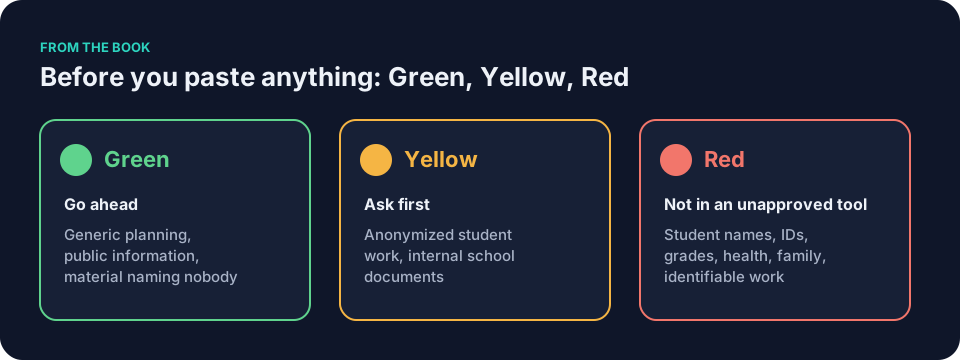
Before you paste anything, apply the Green/Yellow/Red rule. Green covers generic templates, your own public writing, and planning ideas. Yellow means ask your school first, even when student work appears anonymized. Removing a name may leave other identifying details. Red means identifiable or sensitive information does not go into a tool your school has not approved.
Student names, ID numbers, grades, attendance records, discipline notes, IEP details, health information, or any piece of work that could identify the writer all stay red. Even a single sentence that describes a specific incident with enough detail to trace it back to one child is red. Removing names alone does not make a traceable incident safe to paste. The rule is not about the tool’s cleverness. It is about whose information you are handing over and whether your school has approved that tool for it.
If you are unsure, do not paste the material while you seek guidance. School policies differ. Always follow the one written for your building and use the approved workflows for anything sensitive. For a full explanation of identifiable information and how to anonymize a piece of student work before any AI use, read Student data and AI: what never goes into the prompt.
The UK Department for Education, Generative artificial intelligence (AI) in education is a UK government policy paper on generative AI in schools. The TeachAI, AI Guidance for Schools Toolkit is a free toolkit to help schools write AI guidance.
A final check before you send a parent email
Before any parent email leaves your drafts folder, run through a short check. Confirm every fact against your own notes. Verify dates, times, and names. Read the message aloud. Remove any phrase that sounds like a diagnosis or a prediction. Make sure the tone stays neutral and solution-focused. Check that you have not included details about other students. Confirm the message follows your school’s communication policy. Add the recipient’s name and any specific details only in the final version you send through the approved system.
For a printable checklist that covers any AI-assisted task, see The teacher’s AI checklist: before, during and after. Keep one copy next to your computer.
Questions teachers ask
How do I keep my voice when the tool writes so smoothly?
Read the draft aloud. Change any sentence that does not sound like you. Replace two or three phrases. Stop editing once the message feels natural.
Can a teacher-specific tool such as MagicSchool or Brisk do this work for me?
Some teacher-specific tools walk you through common messages with ready forms. They still require you to supply the facts and review the output. The same Draft, Check, Decide rule applies. Test the tool your school has approved.
What if the draft adds details I never gave it?
Flag them immediately. Delete or rewrite them. The tool predicts likely text. It does not know your classroom. Your notes remain the source of truth.
How long should the prompt be?
Long enough to remove guesswork. Short enough to read in one breath. Start with the seven ingredients: context, goal, constraints, examples, output shape, review, and iteration. Cut anything that repeats. Save the version that works for you.
Does this work for elementary newsletters with lots of visuals?
Yes. Describe the exact facts and the reading level. Ask for plain text only. Add the visuals yourself after you edit the words. The tool handles the wording. You handle the layout.
What happens if I forget to anonymize one detail?
Stop using the material. Do not use that output. Follow your school’s reporting or response policy for data disclosures. The risk is not worth the saved minutes.
Are AI productivity tools for teachers safe for parent communication?
For parent communication, use only what your school permits, keep identifying details out of unapproved tools, and verify the draft against your records. The tool drafts. You check. You decide what to send.
Keep It Simple: AI for Teachers walks through these same ideas in the chapter Emails, Notes, and the Small Jobs That Eat Your Day. The free sample contains the first four chapters.
Pick one low-risk job tonight. Open the school-approved assistant. Test the prompt for a routine newsletter. Stop after ten minutes. Save the prompt. Return to it tomorrow when the next message or set of notes lands on your desk.