Picture Maya Rodriguez at 7:12 p.m. Six PDFs sit open on her screen. The district curriculum map, last year’s scope and sequence, the state standards, two articles on energy transfer, and the lab safety checklist all say slightly different things. She needs one clear answer about when to introduce particle motion. A general AI assistant would give her an answer. Whether that answer came from her actual documents is another matter.
Here is RAG explained in one line: an answer about Maya’s files is a different thing from an answer about the topic. Large language models predict likely next words from patterns seen during training. They cannot consult your curriculum, your notes, or your school handbook unless you give them access to those documents. A model can produce a fluent answer without checking your documents, even when the topic is familiar.
It might misstate a standard, invent a historical date, or suggest a lab you would reject under your building’s safety rules. A confident tone is not evidence that the model checked a source.
Document-grounded tools exist to change the source of those predictions. Retrieval-augmented generation, or RAG, is one common way to do it. The system pulls passages from materials you provide and puts those passages in front of the model before it answers. The model still predicts text, but now the documents give it relevant passages to use. It can still add unsupported material.
The core problem RAG explained solves
Without access to your documents, a model may answer from what it learned during training rather than from your current files. A model’s training cannot contain a document created after that training, though an assistant may have other ways to access current material. You cannot assume the model has your latest curriculum revision, building policy, or district wording. That leaves room for an answer that sounds right but contradicts your materials.
RAG explained starts with a simple change: retrieve a passage before generating an answer. Retrieval does not ensure the answer stays within those passages. The teacher still checks every claim.
Consider one concrete task. You need to adapt a reading passage for a mixed-ability class while keeping the exact facts from your district’s adopted text. A document-grounded tool can pull the original sentences and rephrase them within your constraints. You open the original document and compare every fact against the source. The tool drafts. You check. You decide.
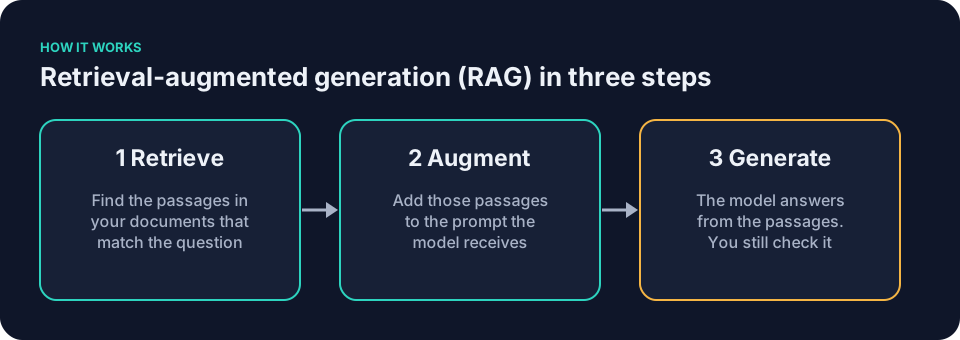
How RAG explained works in three plain steps
First the system prepares your documents. It breaks files into smaller chunks. Some systems turn chunks into numerical representations for a meaning-based search; others also use keyword matching. The method varies. The goal stays the same. The computer can now locate candidate passages.
Second, when you ask a question, the system retrieves those passages. It searches its index for the most relevant chunks and hands them, plus your question, to the language model. If the tool displays source passages, open them and read the sentences it claims to use.
Third, the model generates an answer. It receives the retrieved passages with your question; a tool may also instruct it to answer only from those passages. It may still ignore parts of the text, over-generalize a single example, or blend two unrelated passages into a claim that appears nowhere in your materials. The model predicts likely text. It does not guarantee fidelity.
RAG explained: a worked example in science
Picture Maya again. She is checking whether her eighth-grade energy unit still aligns with a sixth-grade prerequisite her students should have covered. She uploads the district’s sixth-grade energy unit, the state standards document, and two short articles on thermal energy. She asks, “When should I introduce the idea that average particle motion increases as temperature rises within one phase?”
The tool returns three passages. One comes from page 14 of the curriculum map. It states that particle motion appears in the second lesson. Another passage from the state standards lists the exact performance expectation. The third, from an article, gives a simple analogy using a pot of soup.
Maya opens each document. She confirms the pages say what the tool claims. She notices the tool omitted a caution in the curriculum map about distinguishing temperature from total thermal energy. She edits her lesson outline accordingly. The tool gave her a starting point. She made the final call.
The same flow works for Frank Bell in social studies. He uploads the district rubric for document-based questions, three old exams, and the handbook section on source citation. He asks how the rubric weights evidence use versus sourcing. The tool surfaces the exact rubric row and two matching examples from prior exams. Frank reads the original pages. He adjusts his feedback template.
Where RAG explained helps most
A document-grounded tool narrows the search when you face thick policy manuals. It can draft a parent note using a retrieved attendance-policy passage; compare any quoted wording with the original. Ask it to find mentions of differentiation, then search the original curriculum for passages it may have missed. Ask for the source sentences alongside the adaptation, then check each quotation against the original.
Say Jordan Kim faces twenty-seven student responses on the American Revolution. He uploads the unit rubric and his own past feedback notes. He asks the tool to draft one-sentence comments that reference specific rubric language. The tool returns drafts tied to exact rubric phrases. Jordan reads the original rubric again. He keeps three comments, rewrites eight, and discards two that softened the language too much.
Denise Carter in the front office uploads the approved templates for messages home. She asks for a draft about a bus delay that matches the exact wording required by the handbook. The tool pulls the relevant paragraph and produces a version. Denise checks the source paragraph, confirms the tone, and sends the note.
These examples sit inside the kinds of tool described on the page about ai tools for teachers. Most teachers need only three. A general AI assistant covers drafting and quick explanations. Try a document-grounded tool when an answer must be checked against your own files. A teacher-specific tool walks you through repeated classroom tasks with ready forms. The rest remain optional.
RAG explained: where retrieval still goes wrong
Retrieval can miss the best passage. A question phrased one way finds the right chunk. The same question phrased differently returns something irrelevant or nothing at all. Chunk boundaries can cut a key sentence in half. The model can then receive incomplete information.
Even when the right passages appear, the model can ignore them. It can add details from its training data that contradict your document. It can stitch two separate rules into a third rule that exists nowhere in your materials. It can drop an exception clause that changes the entire meaning.
Picture Denise Carter asking what the handbook says about the phrasing of a note home. The tool retrieves a reassuring sentence but misses the exception clause two sentences later. The answer sounds complete. It is not.
Or say Jordan Kim asks whether a state standard requires a specific lab procedure. The tool retrieves a paragraph from an earlier draft of the standards and answers yes. The current version, two pages later, removed that requirement. The tool cited the wrong passage. Its tone stayed certain.
These are failures worth testing for. Research introduced the term RAG in Lewis et al. (2020), Retrieval-Augmented Generation for Knowledge-Intensive NLP Tasks. The U.S. standards body offers general guidance on managing AI risks in its NIST, AI Risk Management Framework.
That is why the method stays Draft, Check, Decide. The tool drafts. You check against the original documents. You decide what to use. The prompt is the instruction, not the product.
Your school’s policy determines what you may upload. Public information can be Green; ask your school before uploading internal documents or anonymized student work, and follow its rules for the tool you use.
Red: do not put student names, grades, or other protected information into a tool your school has not approved. Follow your school’s policy even with an approved tool.
How to test whether a tool is actually grounded
The routine matches the one in the article on evaluating LLMs at work. Define the task clearly. Build a small realistic test set. Check consistency when the question is phrased differently. This links directly to research on prompt framing covered on the research page.
Pick one small task. Choose a public document or one your school has explicitly approved. Prepare three questions you already know the answers to. Confirm that Question 1 has its answer clearly present, Question 2 has its answer clearly absent, and Question 3 rephrases Question 1. Before you upload anything, verify your school’s policy for both the tool and the document.
Ask each question. Record the answer and every passage the tool cites or displays. Open the original document. Read the cited sentences yourself. Does the passage actually support the claim? For the absent question, does the tool correctly say the information is not there, or does it invent a policy?
Run the same set again with slightly different wording. Watch for inconsistent answers. Save the test set. Run it again when the tool or its settings change. Tools and their settings change.
Here is a small test you can copy. Replace the bracketed slots with your own approved document and questions.
Document: [upload a public curriculum guide or a policy your school has approved]
Question 1 (answer present): [ask about a specific rule or date you know is in the document]
Question 2 (answer absent): [ask about a topic you know is not covered in the document]
Question 3 (rephrased): [rephrase Question 1 using different words]
For Question 1 the tool should point to a specific passage. Read that passage. For Question 2 it should say the answer is not in the document. Any invented policy is a red flag. For Question 3 the answer should match Question 1. Different wording should not produce different facts.
If the tool frequently cites nothing, cites the wrong section, or adds information not present in any passage, do not trust its answers to this task without checking the documents yourself. Keep the test small. Start with one low-risk document and the three questions below. The ten-minute version applies here too. Pick one low-risk task tonight. Do not try to build a whole new system.
A worked comparison: supported, absent, and unsupported
Say you upload your school’s approved field-trip handbook. You ask three questions.
First, a supported answer. You ask, “What is the deadline for permission slips?” The tool answers, “Permission slips are due two weeks before the trip.” It cites page 4. You open page 4 and read, “All permission slips must be submitted no later than two weeks prior to departure.” The passage supports the claim. You keep the answer.
Second, an absent answer. You ask, “What does the handbook say about overnight trips?” The tool answers, “The document does not mention overnight trips.” You search the handbook yourself. You find no section on overnight travel. The tool correctly identified the gap. You keep the answer.
Third, an unsupported answer. You ask, “Can parents chaperone?” The tool answers, “Parents may chaperone if they pass a background check.” It cites page 7. You open page 7 and read, “Chaperones must be approved by the principal.” The passage does not mention background checks. The tool added a requirement the cited passage does not support. You discard the answer and check the handbook yourself.
A worked test: the missed exception
Say you upload your school’s approved grading policy. You ask, “Can a student retake a test for full credit?” The tool answers, “Yes, students may retake any test for full credit.” It cites page 3. You open page 3 and read, “Students may retake one test per quarter for full credit, provided the original score was below the passing mark.”
The tool dropped the exception. The answer sounds complete. It is not. Record the answer as unsupported. Note the cited location and the exact sentence the tool missed. If the tool cannot show you a passage you can inspect, treat the answer as unverified and check the document yourself.
A worked test: conflicting document versions
Say you upload two versions of your district’s writing rubric. One is dated last year. One is dated this year. You ask, “How many points does the rubric give for organization?” The tool answers, “Organization is worth four points.” It cites page 2 of the older rubric.
You open the current rubric. Page 2 now gives organization six points. The tool retrieved from the outdated file. Record the answer as unsupported. Note which version the tool used. Check the date on every document before you upload it.
A worked test: the missed exception in a table
Say a fourth-grade teacher uploads the district’s approved math pacing guide. She asks, “When should I introduce two-digit multiplication?” The tool answers, “Introduce two-digit multiplication in week 12.” It cites a table on page 8.
She opens page 8. The table shows week 12 for most classes. A footnote below the table reads, “Students who have not mastered single-digit facts begin in week 14.” The tool read the table but missed the footnote. The answer is incomplete. She edits her plan to check fact fluency first.
What to record when a tool gives no inspectable source
Some tools answer without showing any passage. Others show a passage you cannot open. In both cases you have no location to check.
Write down the exact question you asked. Write down the answer the tool gave. Note that no inspectable source was provided. Open the original document and search for the claim yourself. If you find support, record the answer as supported and note the location. If you cannot find support, record the answer as unverified. Do not treat the answer as confirmed until you have checked it against the document.
A recording sheet for your three-question test
Use this sheet when you test a document-grounded tool. Keep it next to the document.
- Question: [write the exact question you asked]
- Expected answer: [write what you know the document says, or “not covered”]
- Retrieved passage: [copy the passage the tool cites or displays, with page or section]
- Verdict: [supported, unsupported, unverified, or not found]
- Next action: [keep the answer, edit it, discard it, or check the document yourself]
Run the sheet for each of your three questions. Save it. Run it again when the tool or its settings change.
Common mistakes and how to fix them
One mistake is treating every answer as grounded simply because the tool says it is. Always open the cited passages. Another mistake is uploading sensitive material before checking the color code. Public information can be Green; ask your school before uploading internal documents or anonymized student work, and follow its rules for the tool you use.
A third mistake is writing vague prompts. The seven ingredients help. Give context such as grade level and objective. State the goal in one clear job. List constraints so the tool does not add unwanted extras. Provide an example in your own voice. Specify the output shape so errors are easy to spot. Ask the tool to flag items you must verify. Then iterate on the draft instead of starting over.
Say the first draft contains an error. Quote the weak item and ask for one narrow change. Keep the rest of the output intact. If the facts remain wrong, stop. Return to the original document and write the section yourself.
Another mistake is assuming one test run is enough. Run the same three questions after any update. Consistency matters more than a single clean answer.
A prompt you can copy
Here is a prompt that asks for an answer, the supporting passage, and an explicit statement when the document does not answer. Replace the bracketed slots with your own document and question.
Document: [upload a public curriculum guide or a policy your school has approved]
Question: [ask a specific question about the document]
Instructions: Answer the question using only the supplied document. Quote the exact passage that supports your answer and give its location (page or section). If the document does not answer the question, say so explicitly.
Verify the passage and location yourself. The tool may cite the wrong page or quote inaccurately. Open the original document and read the cited sentences.
Questions teachers ask
RAG explained: why a citation is not proof
A citation gives you a location to check. Confirm that the passage exists and supports the answer. The model can misread, ignore, or over-generalize. You check every time.
RAG explained: can student work go into a grounded tool?
Follow your school’s policy for the tool and the specific student work. Do not upload it unless that policy permits the use.
How long does it take to prepare documents?
Preparation varies by tool and document; check that the file is available before testing it.
What if the tool cites a passage but the answer still feels off?
Open the passage. Read the full paragraph or page. If the tool stretched the meaning, edit the output or discard it. The tool drafts. You decide.
The book Keep It Simple: AI for Teachers walks through the Draft, Check, Decide loop, the five things AI can actually help with, and the seven ingredients of a prompt. The free sample contains the first four chapters.
Choose one school-approved or public document tonight. Write one question you know is answered, one you know is not, and one rephrasing. Ask the tool. Open the cited passages. Check whether they support each answer.